Experience Settings
Customize your theme, accent colors, chart styles, and date/time preferences in the CRM.
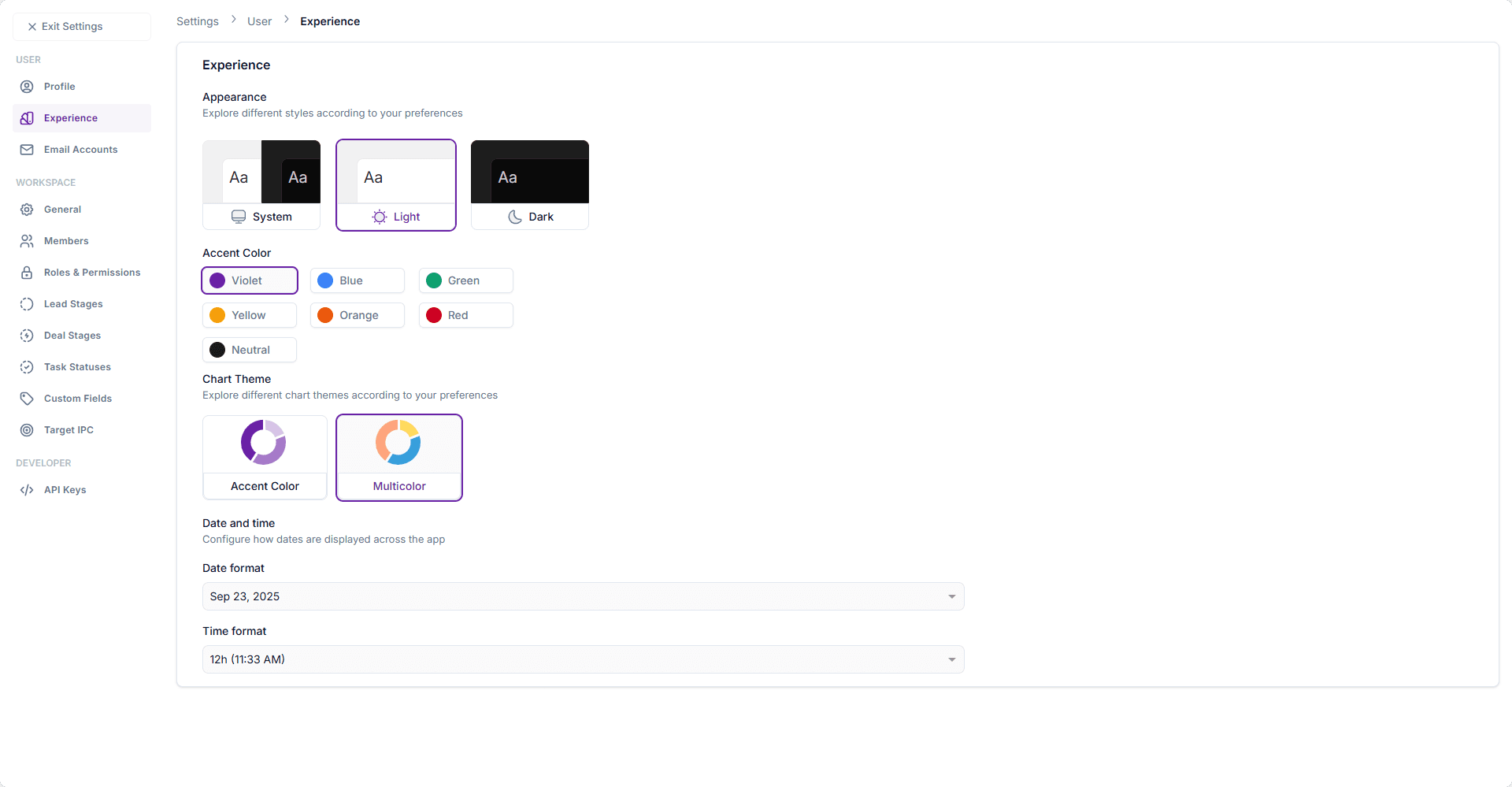
The Experience Settings page allows you to personalize the look and feel of your CRM environment, including theme, colors, chart styles, and how dates/times are displayed.
You can access it from:
Settings → User Settings → Experience
Appearance
Choose how the application’s interface is displayed:
-
System
Matches your operating system’s theme preference automatically. -
Light
A light-colored theme for maximum readability in bright environments. -
Dark
A dark-colored theme for reduced eye strain and better focus.
Accent Color
Select an accent color for buttons, highlights, and UI elements.
Available options include:
- Violet
- Blue
- Green
- Yellow
- Orange
- Red
- Neutral
Chart Theme
Customize how charts and reports are displayed:
-
Accent Color
Charts use your chosen accent color for visual consistency. -
Multicolor
Charts use multiple colors to differentiate categories or segments.
Date and Time
Control how dates and times appear throughout the application:
-
Date Format
Choose the format in which dates are displayed (e.g.,Sep 23, 2025). -
Time Format
Select between:- 12-hour format (e.g., 11:33 AM)
- 24-hour format (e.g., 23:33)
Best Practices
- Use System Mode if you want your CRM to automatically follow your device’s theme.
- Select a consistent Accent Color that aligns with your brand.
- Use Multicolor Charts for analytics dashboards where distinguishing data categories is important.
- Ensure your Date/Time format matches your regional or organizational standard.