Leads
Manage and track leads from multiple sources in your B2B CRM platform.
The Leads Module helps you manage your sales pipeline by centralizing all your leads from different sources into one place. It is designed to simplify lead capture, tracking, assignment, and conversion.
In B2B CRM, a Lead represents a potential customer who has shown some level of interest in your products or services. These leads can be generated through various channels, including:
- Website inquiries (contact forms, live chat)
- Referrals from existing customers
- Networking events and conferences
- Paid marketing campaigns (social media ads, search engine ads)
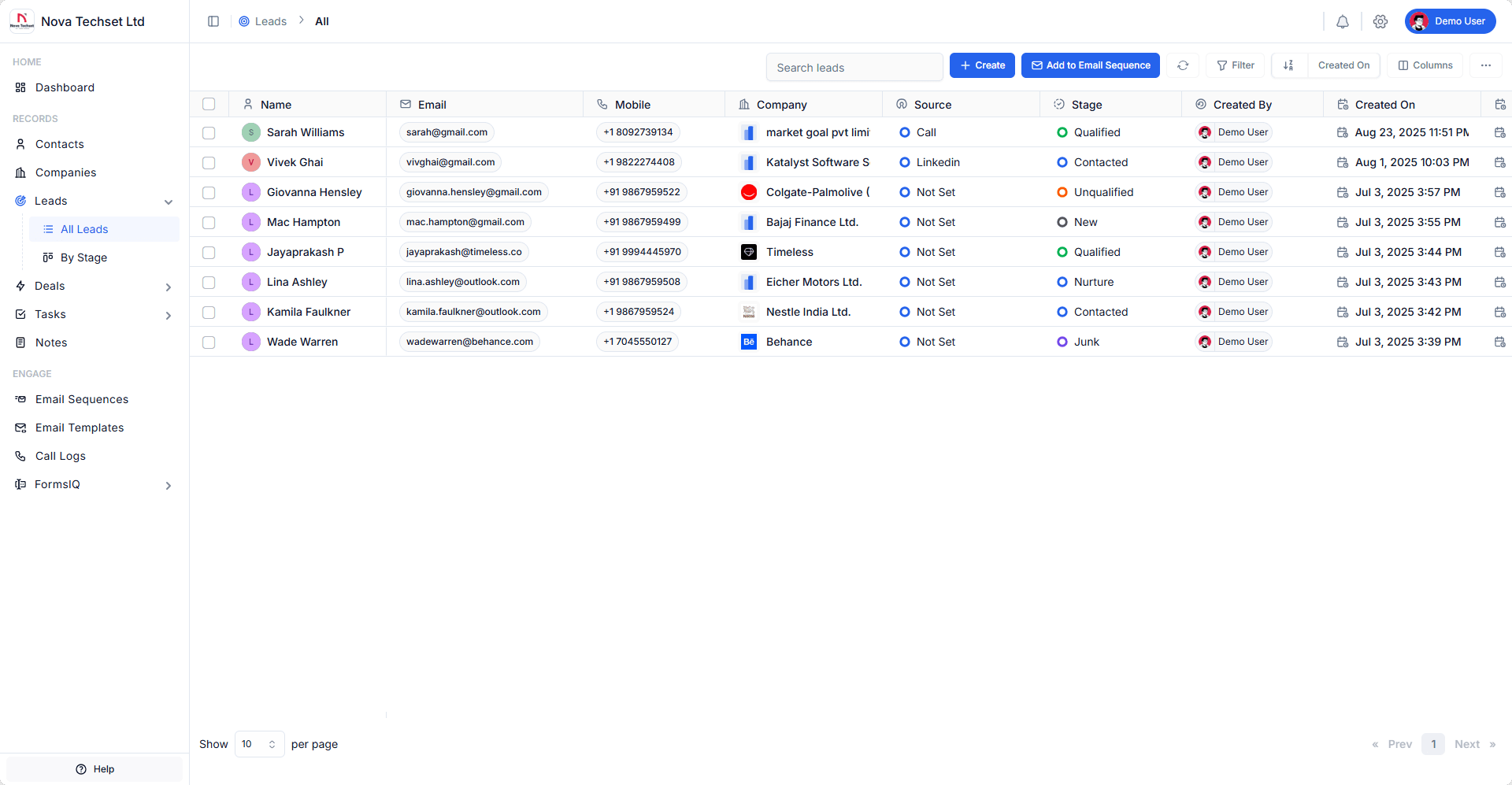
1. Capturing Leads Data
Leads can be captured from multiple sources to ensure you never miss an opportunity:
-
Manual Entry
Add a new lead directly from the Create Lead screen.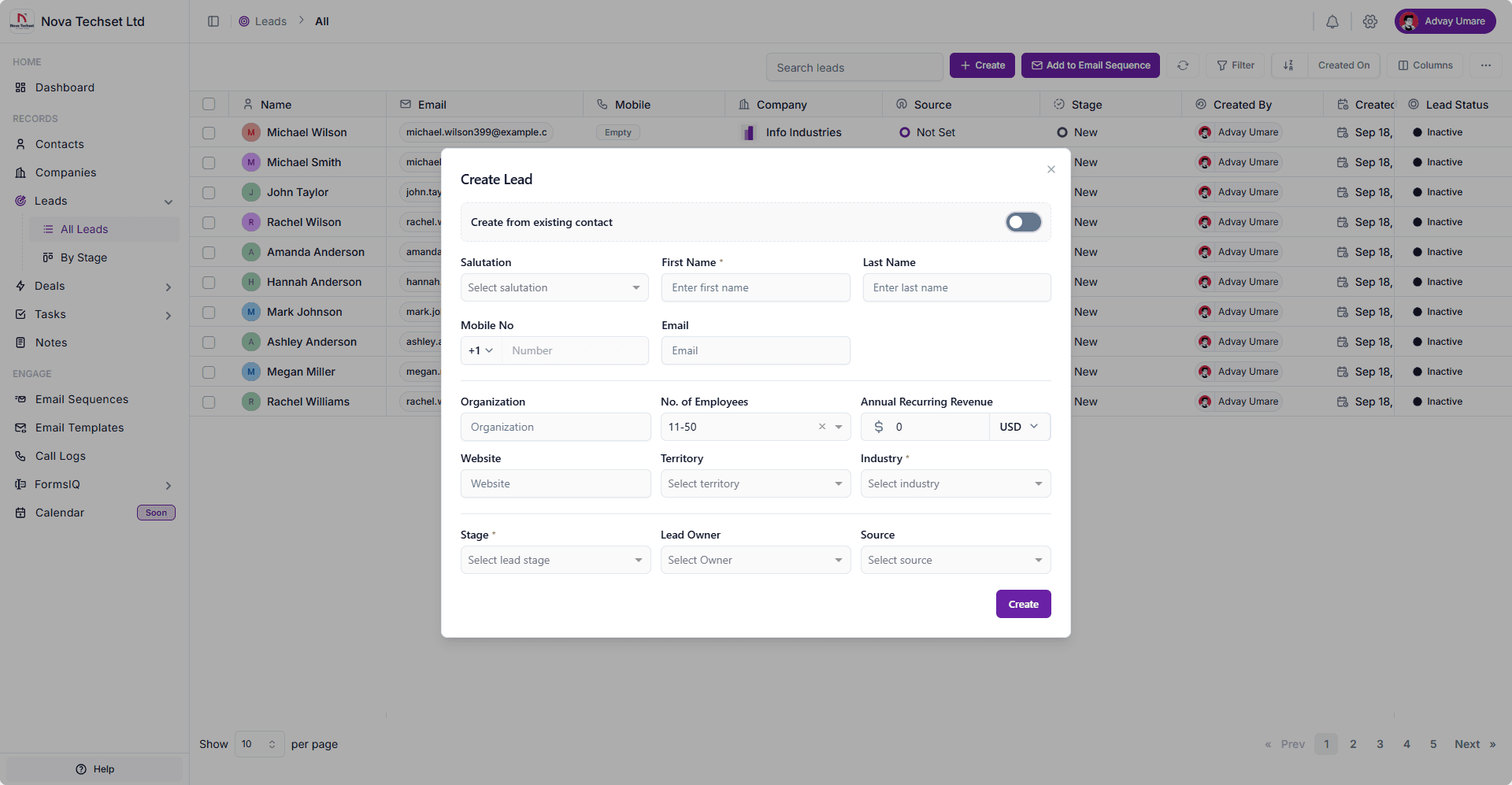
- Log in to your B2B CRM account.
- Navigate to Leads section from the sidebar.
- Click on Create button.
- Enter basic details (Name, Email, Company, Phone).
- Choose the Source (Web Form, LinkedIn, Import).
- Assign to a team member by selecting Lead Owner (optional).
- Click Create button.
- The lead will be created and you will be redirected to the lead details page.
-
Bulk Import
Upload CSV/Excel files to import large volumes of leads at once.- Navigate to Leads → More Options → Import Leads.
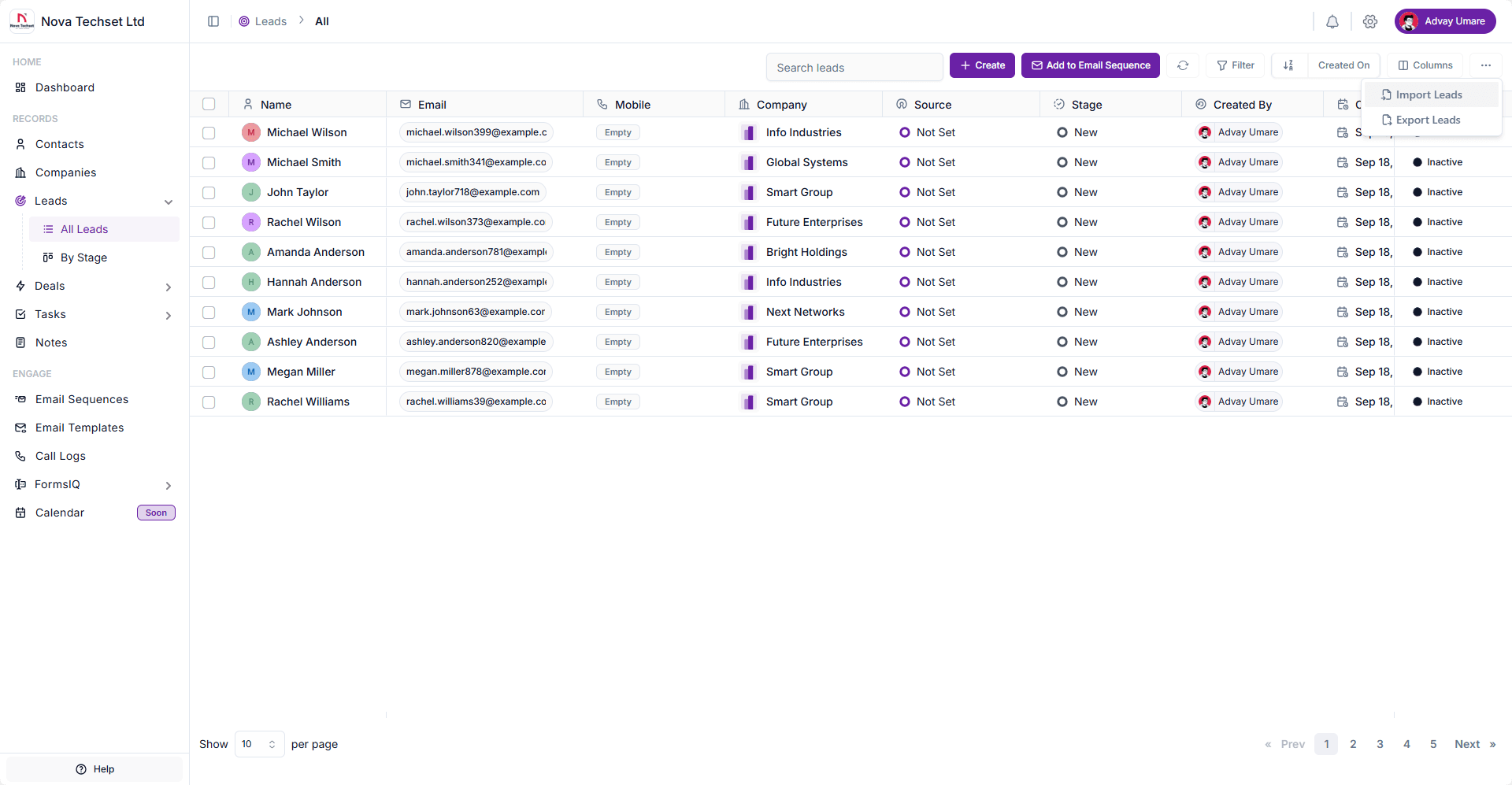
- Browse a csv/xlsx file and click on Upload.
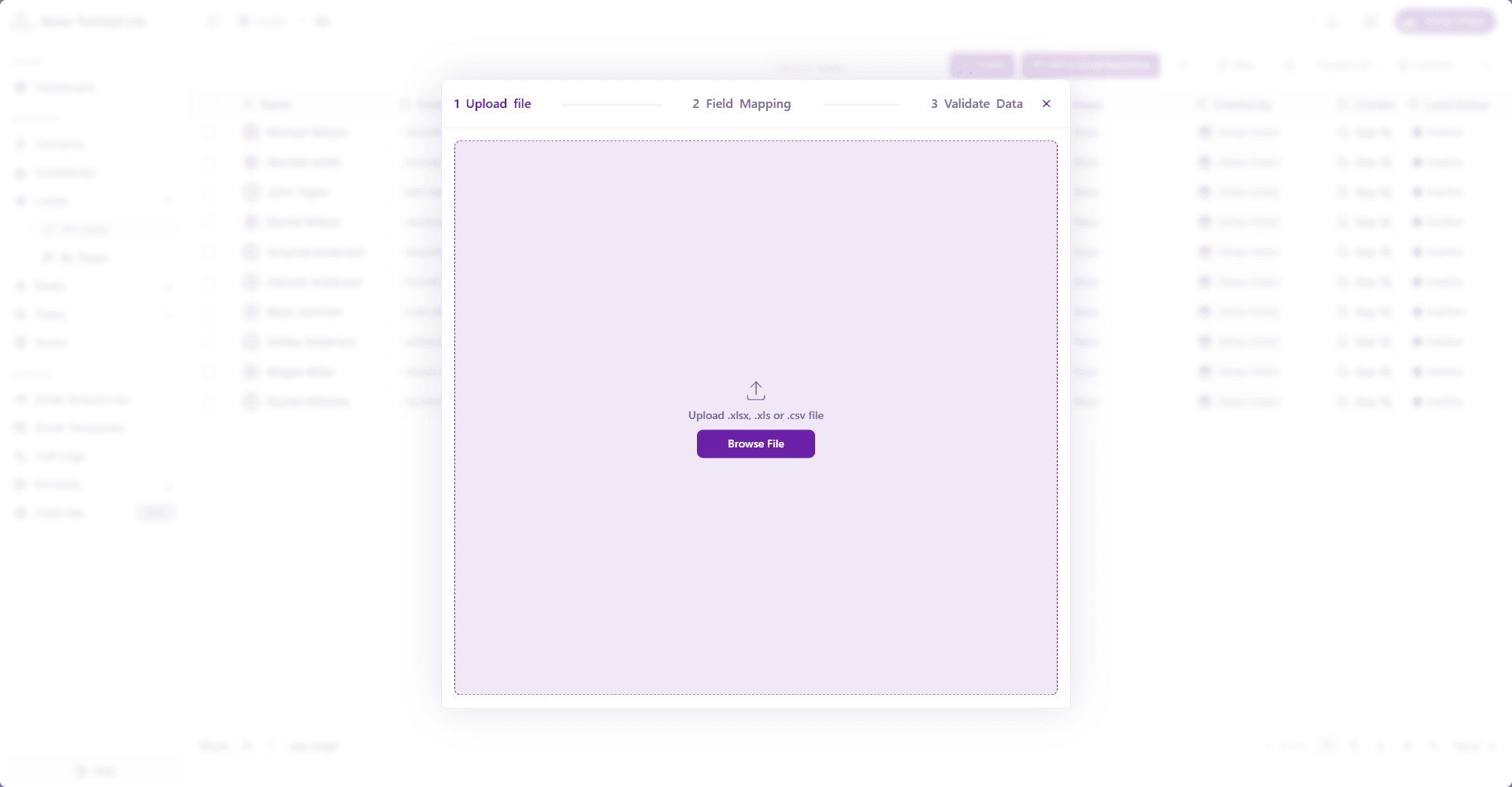
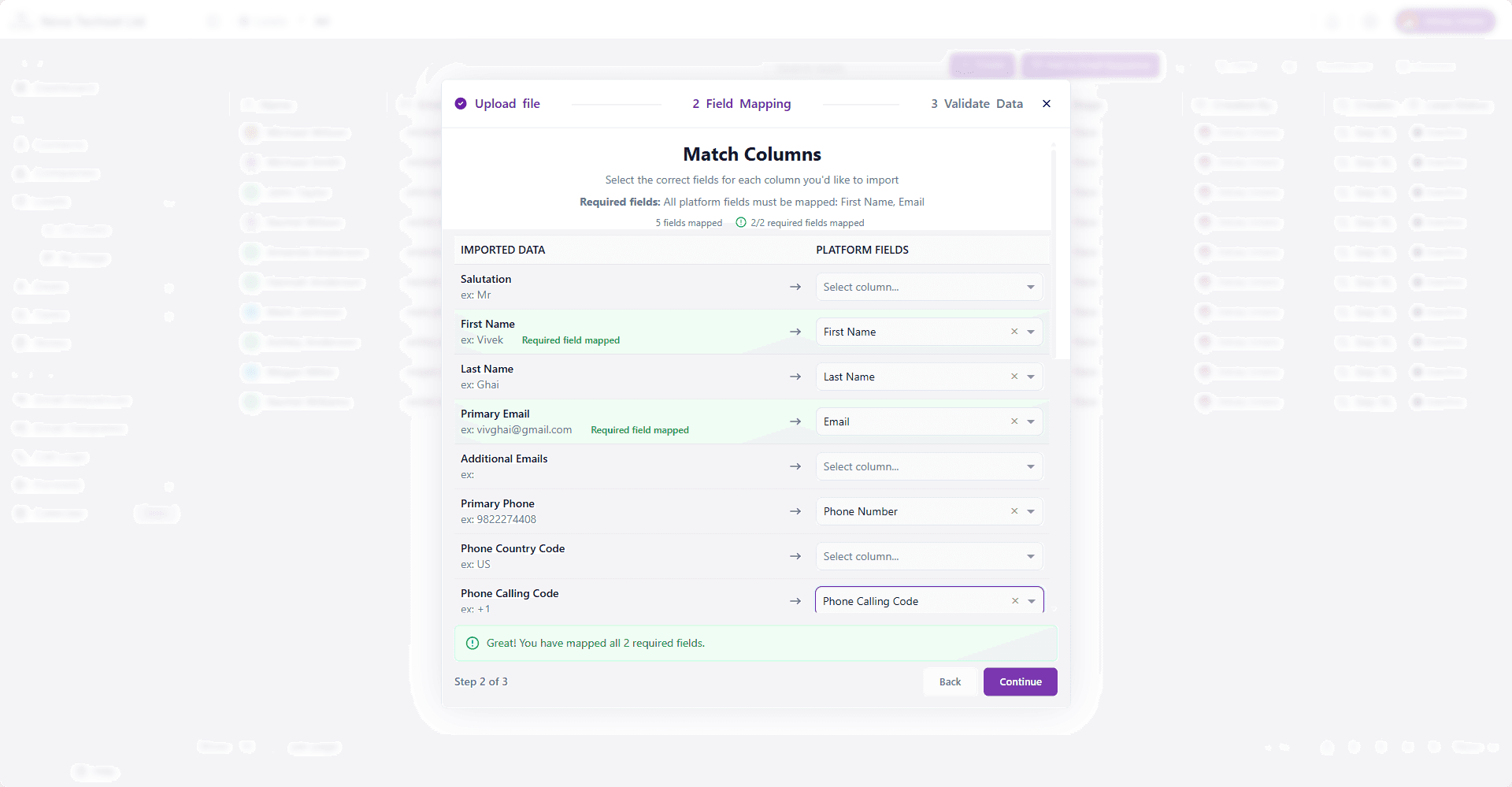
- Match the uploaded fields with the appropriate platform fields..
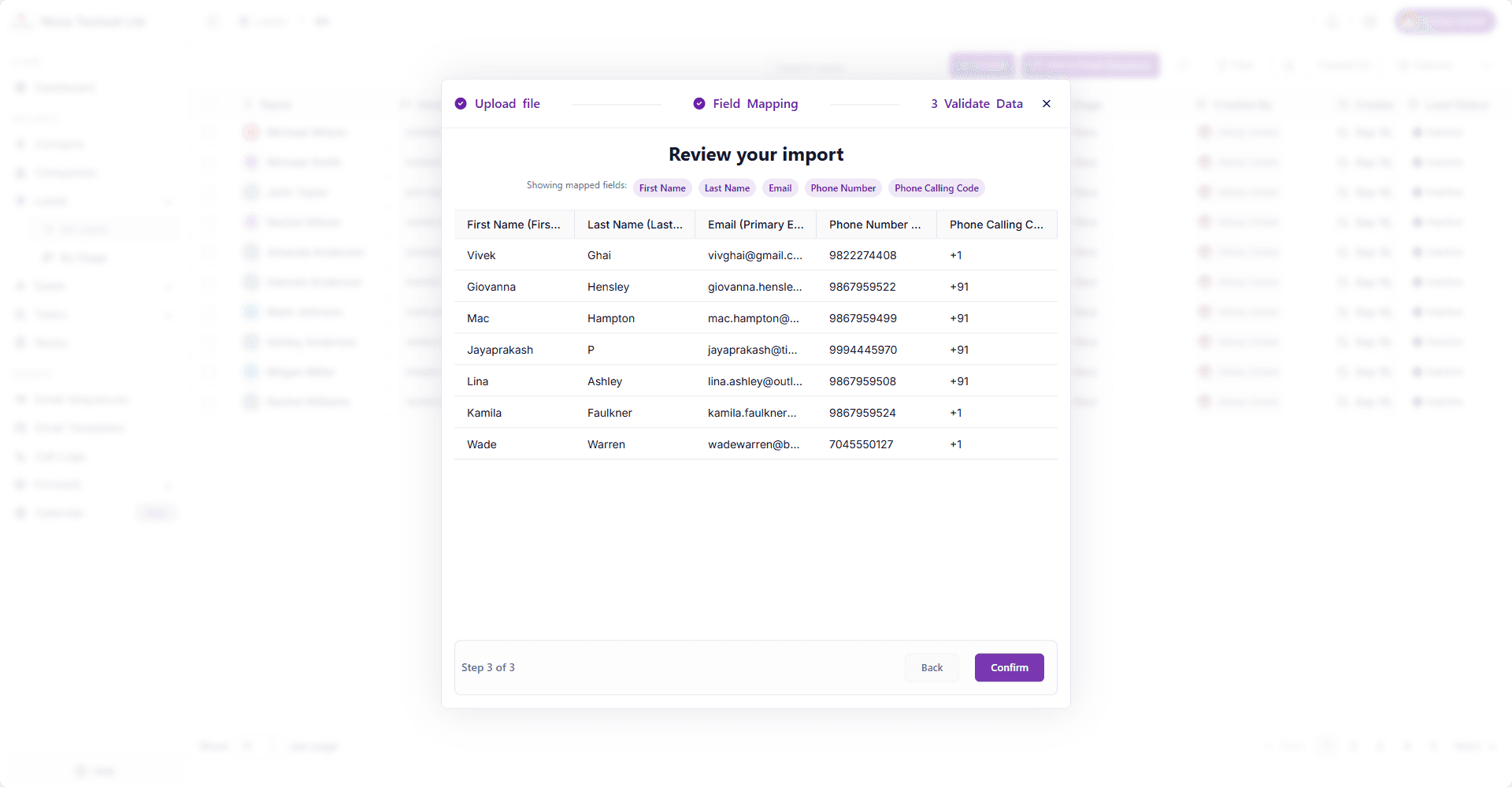
- Review the import data.
- Click Import button.
- The leads will be imported and you will be redirected to the lead details page.
- Navigate to Leads → More Options → Import Leads.
- Deduplication
The system prevents duplicates by checking for existing records before adding new ones.
2. Managing Leads
Once captured, leads can be enriched, organized, and tracked throughout their lifecycle:
-
Activity Timeline
Track all interactions including calls, emails, notes, and meetings. -
Segmentation & Filters
Group leads by:- Source
- Stage
- Priority
- Tags
3. Converting Leads to Deals
Qualified leads can be converted into deals with a single click:
-
Conversion Options
- Convert a lead into a Deal.
- Link the deal with existing Contacts or Companies.
-
Audit Trail
Keep a full history of lead-to-deal conversions for tracking. -
Pipeline Integration
Converted deals automatically appear in your Sales Pipeline, where they can be tracked through different stages.
4. Adding Leads to Email Sequences
Leads can be added to automated Email Sequences for consistent engagement:
-
Add to Sequence
From the lead profile, choose Add to Sequence and select a predefined campaign. -
Personalization
Use dynamic fields to personalize emails. -
Tracking & Reporting
Monitor open rates, replies, and click-through rates directly from the lead’s timeline. -
Automation
Leads will automatically progress through the sequence until they respond, convert, or are removed.
Best Practices
- Regularly clean and deduplicate leads to maintain data quality.
- Use smart filters to prioritize high-value leads.
- Align email sequences with lead stages for higher engagement.
- Convert leads promptly once qualified to avoid missed opportunities.
Related Modules
- Contact – Manage individual relationships.
- Company – Organize leads into organizations.
- Deal – Track opportunities and revenue.
- Email Sequence – Automate outreach and nurture campaigns.