Records
Notes
Capture and organize important information about contacts, companies, leads, and deals.
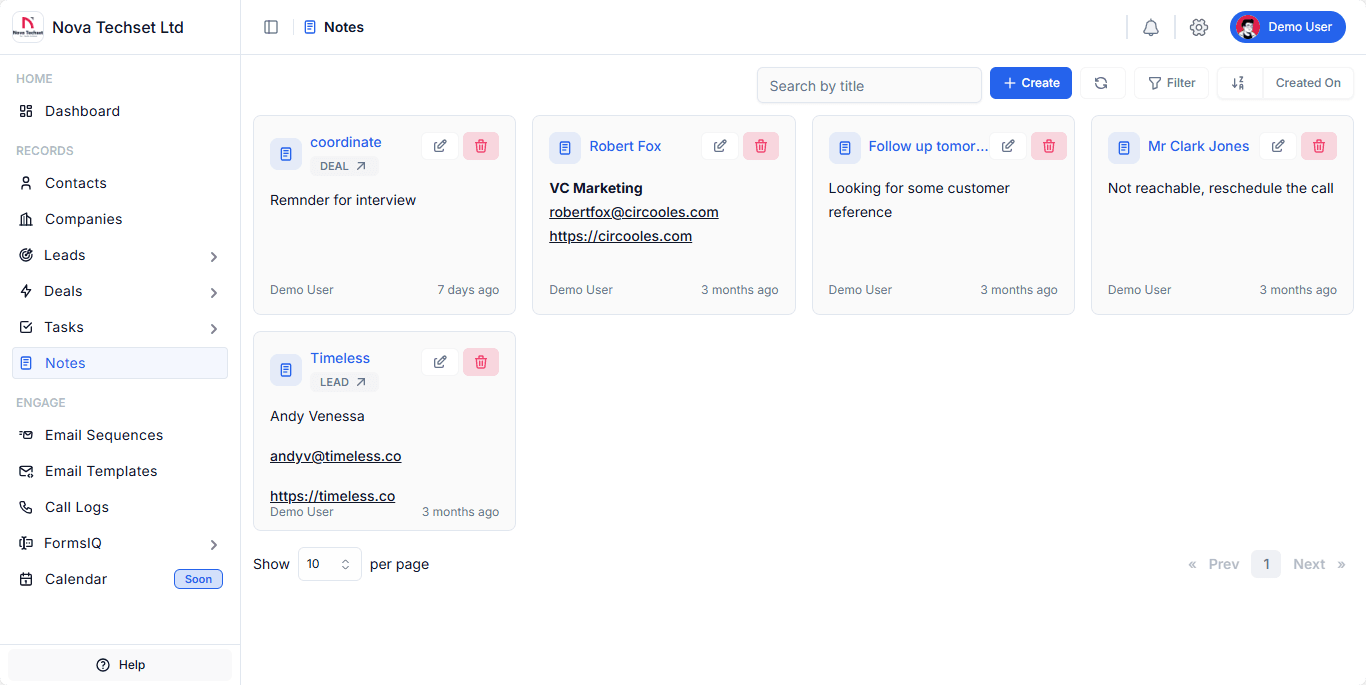
The Notes Module allows you to quickly capture and organize important details across your CRM.
Notes can be linked to Contacts, Companies, Leads, and Deals so your team has context readily available.
Key Features
-
Create Notes
Add notes with rich information such as text, links, and references. -
Entity Association
Link notes directly to CRM records (Contacts, Leads, Deals, Companies) for better context. -
Edit & Delete
Update notes when details change or remove irrelevant ones. -
Search & Filters
- Search notes by title.
- Filter by created date or associated record.
-
Activity Tracking
Notes display the author and timestamp (e.g., “7 days ago”).
Workflow
-
Create a Note
- Click the + Create button.
- Enter the note details (title, body, links).
- Associate it with a related entity (lead, deal, contact, or company).
-
Manage Notes
- Use the edit icon ✏️ to update existing notes.
- Use the delete icon 🗑️ to remove unnecessary notes.
-
Review Notes
- See all notes in a card layout with quick access to details.
- Check timestamps to know when notes were last updated.
Example Use Cases
- Sales Follow-Up: Log call notes after speaking with a lead.
- Recruitment: Keep candidate interview impressions in one place.
- Customer Success: Document client meeting outcomes for the team.
- Deal Progress: Record negotiation updates tied to a deal.
Best Practices
- Always link notes to the correct entity for context.
- Use titles that are descriptive (e.g., “Follow-up with John – Pricing”).
- Add links and emails to make notes actionable.
- Keep notes updated so your team stays aligned.
Related Modules
- Contacts – Attach notes to people.
- Companies – Document company interactions.
- Leads – Record qualification notes.
- Deals – Track updates on ongoing negotiations.