SettingsWorkspace
General
Manage your workspace name, domain, and branding in the CRM.
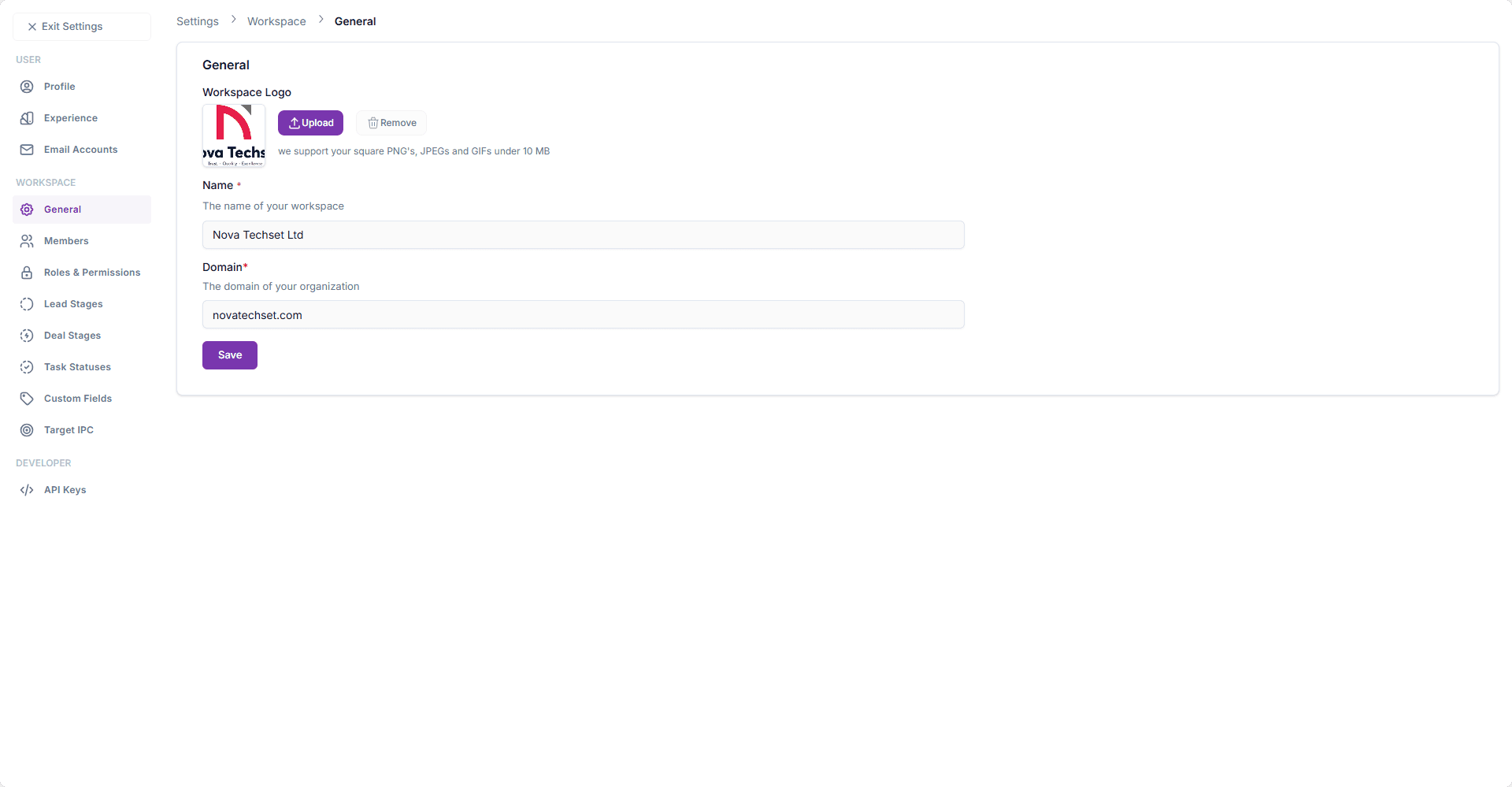
The General Settings page allows you to configure your workspace identity and branding.
This includes updating the workspace name, uploading a logo, and setting the workspace domain.
You can access it from:
Settings → Workspace → General
Workspace Logo
-
Upload
Click Upload to add your workspace logo.- Supported formats: PNG, JPEG, GIF
- Recommended aspect ratio: Square (1:1)
- Maximum size: 10 MB
-
Remove
Click Remove to delete the current logo and revert to the default workspace icon.
Workspace Name
- Define the display name for your workspace.
- The name will appear in:
- The application header
- Notifications
- Shared documents and links
⚠️ Choose a clear and recognizable name to make collaboration easier across teams.
Domain
- Set a unique workspace domain (e.g.,
yourcompany.crm.com). - The domain is used for:
- Workspace-specific URLs
- User login identification
- Shared resources and integrations
⚠️ Once a domain is set, changing it may affect integrations and shared links. Contact your administrator before updating.
Best Practices
- Use a high-resolution logo for the best appearance across the platform.
- Keep the workspace name consistent with your company or project identity.
- Set the domain carefully at the beginning of setup to avoid disruptions later.